Workflow automation is the practice of using software to execute a sequence of tasks—across people, apps, and systems—without requiring someone to click, copy, or email their way through each step. You define the rules once; the system handles execution every time.
Why does this matter right now? In 2025–2026, the average small business juggles 40+ SaaS applications. Remote teams span time zones. AI agents are beginning to handle multi-step decisions autonomously. The result: manual hand-offs that once felt manageable now create bottlenecks, errors, and lost revenue.
Here’s a concrete picture. When a lead fills out a pricing form on your website, a workflow automation system can instantly create a CRM record, score the lead, post a Slack alert to the right sales rep, and schedule a follow-up email—all in under three seconds, with zero human intervention.
In this guide, you’ll learn exactly how workflow automation systems work under the hood: the core components, the step-by-step execution flow, real examples across sales, finance, HR, and IT, and a practical playbook to implement your first automation this week.
What Is a Workflow Automation System?
Before diving into mechanics, let’s untangle the terminology.
Workflow automation refers to software that moves data and tasks through a defined sequence of steps—trigger, logic, action—across one or more applications. Popular workflow automation software includes Zapier, Make (formerly Integromat), n8n, and Microsoft Power Automate.
Business process automation (BPA) is a broader umbrella. It encompasses end-to-end process redesign, not just task sequencing. Think of BPA as the strategy; workflow automation as one execution layer within it.
Robotic Process Automation (RPA) differs in a key way: RPA bots mimic human clicks inside a single application’s user interface. Workflow automation, by contrast, connects systems via API integrations and webhooks at the data layer—faster, more reliable, and easier to maintain.
iPaaS (Integration Platform as a Service) focuses specifically on connecting applications and moving data between them. Workflow management software layers orchestration, rules engines, and monitoring on top of those integrations.
Typical capabilities of modern workflow automation systems include:
- A visual, drag-and-drop builder (low-code/no-code automation)
- Configurable triggers, conditions, and actions
- Branching logic and rules engines
- 100–5,000+ pre-built SaaS integrations
- Monitoring dashboards, error handling, and retry logic
- Audit logs and role-based access control (RBAC) for compliance
- Increasingly, AI workflow automation features such as document parsing, decision support, and autonomous agents
Core Components: The Building Blocks
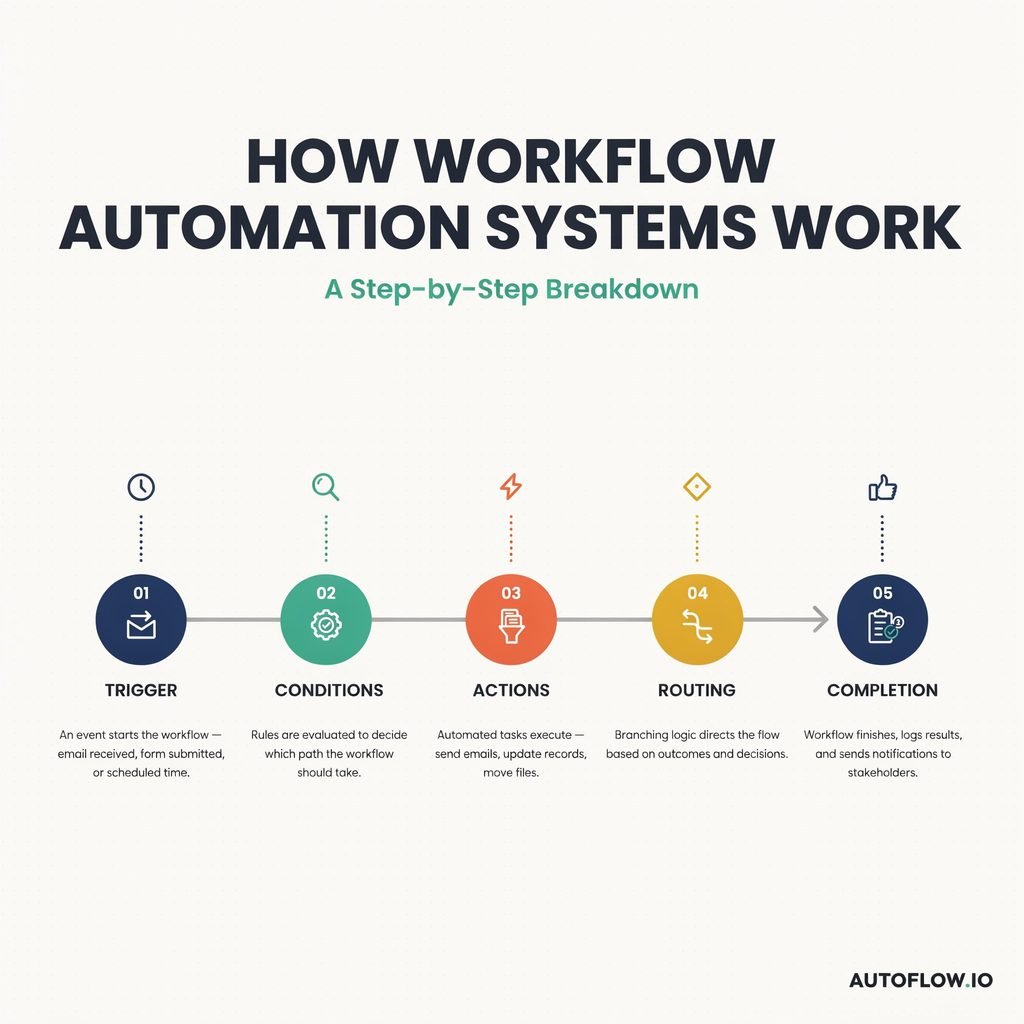
Every workflow automation system—whether you use Zapier, Power Automate, n8n, or an enterprise iPaaS—relies on the same fundamental components. Think of the flow as: Trigger → Logic → Action → Log.
Triggers
A trigger is the event that starts a workflow. Common trigger types include:
- Form submission (a lead fills out a landing-page form)
- Status change (a deal moves to “Closed-Won” in your CRM)
- Scheduled time (run every Monday at 8:00 a.m. ET)
- Webhook/API call (an external system pushes a payload to a URL endpoint)
Conditions & Logic
Once triggered, the workflow evaluates rules. This is where if-then logic, branching, and data validation live. Example: “If the lead source is ‘Paid Ads’ AND deal value > $10,000, route to the enterprise team; otherwise, route to SMB.” A robust rules engine also handles exceptions—what happens when a required field is missing or an API call times out.
Actions
Actions are the tasks the system executes: send an email, create a CRM record, update a spreadsheet row, post a message in Slack or Teams, generate a PDF, or call an external API. A single workflow can chain dozens of actions across multiple apps.
Data Mapping & Transformation
When data moves between systems, fields rarely align perfectly. Data mapping translates “First_Name” in your CRM to “givenName” in your ERP. Data transformation reformats dates, concatenates strings, or converts currencies so downstream apps receive clean, usable input.
Integrations & APIs
API integrations and webhooks are the connective tissue. They link your CRM, ERP, email service provider (ESP), ITSM platform, accounting software, file storage, and chat tools into a single orchestrated flow.
Monitoring, Error Handling & Alerts
A production-grade system includes a monitoring dashboard showing execution success rates, error handling with automatic retry logic, Slack or email alerts on failure, and immutable audit logs for compliance. Without these, a silent failure can cascade into lost revenue or regulatory risk.
Step-by-Step: How a Workflow Actually Runs
Let’s trace a complete sales workflow from first touch to closed-won onboarding. The same pattern applies whether you’re automating HR onboarding, IT ticket triage, or invoice processing.
Step 1 — Trigger Fires
A prospect submits a “Request a Demo” form on your website. The form tool (Typeform, HubSpot Forms, etc.) fires a webhook, sending a JSON payload—name, email, company size, product interest—to your workflow automation platform. The trigger is now active.
Step 2 — Data Intake & Validation
The system receives the payload and runs validation rules:
- Are all required fields present?
- Is the email format valid?
- Does this contact already exist in the CRM (deduplication check)?
If validation fails, the workflow branches to an error path: flag the record, notify an admin, and log the issue. If it passes, the workflow proceeds.
Step 3 — Logic Evaluation
The rules engine evaluates routing conditions:
- If company size > 500 employees AND deal estimate > $50,000 → assign to Enterprise AE, notify VP of Sales in Slack.
- If company size ≤ 500 → assign to SMB Account Executive.
- If product interest = “API Platform” → tag for technical pre-sales.
This branching ensures the right person gets the right context instantly.
Step 4 — Cross-System Actions
With routing decided, the workflow executes actions across multiple SaaS integrations:
- Create (or update) a contact and opportunity record in Salesforce or HubSpot (CRM).
- Post a formatted alert in the assigned rep’s Slack channel.
- Send a personalized welcome email via your ESP.
- Create a follow-up task in your project-management tool (Asana, Monday.com).
- Generate a one-page brief using document automation and attach it to the CRM record.
Each action calls an API endpoint, receives a success or error response, and passes status back to the orchestrator.
Step 5 — Human-in-the-Loop (If Needed)
Not every step should be fully automated. Approval workflows let a manager review a discount above 20% before the proposal goes out. The system pauses, sends an approval request, waits for a click or reply, then resumes. Exceptions—like a missing budget code—route to a human for manual review before continuing.
Step 6 — Logging & Reporting
Every execution writes to an audit log: timestamp, trigger source, each action taken, prior and new data states, and the user or system actor responsible. If an action fails, retry logic attempts the call again (e.g., three retries with exponential back-off). Persistent failures surface on the monitoring dashboard and trigger an alert to the workflow owner.
This six-step cadence—trigger, validate, decide, act, involve humans when needed, and log—is universal. Swap the domain (HR onboarding automation, finance invoice automation, IT ticket triage) and the structure holds.
Real-World Examples by Function
Here are six concise trigger → logic → action blueprints you can adapt today:
Sales – Lead Routing
- Trigger: New lead submitted via website form.
- Logic: Score lead using firmographic data; if score ≥ 80, mark “hot.”
- Action: Create CRM record, assign to territory rep, send personalized welcome email, post Slack notification.
Marketing – Campaign Nurture
- Trigger: Contact submits a gated-content form.
- Logic: Tag contact in ESP based on content topic; check existing segment membership.
- Action: Add to nurture segment, create a task in your PM tool for the content team, notify the marketing Slack channel.
Finance – Invoice Automation
- Trigger: Email with PDF invoice arrives in a monitored inbox.
- Logic: AI document automation extracts vendor, amount, PO number; validates against the ERP purchase-order record.
- Action: Create a bill in QuickBooks or NetSuite, route through approval workflows, alert AP manager if discrepancy > 5%.
HR – Onboarding Automation
- Trigger: New hire status set to “Confirmed” in your HRIS (Workday, BambooHR).
- Logic: Determine department, role, and required tool access.
- Action: Provision email and SSO accounts, assign training modules in your LMS, schedule orientation on the manager’s calendar, notify IT.
IT/Support – Ticket Triage
- Trigger: Employee submits a ticket in your ITSM tool (ServiceNow, Jira Service Management).
- Logic: Categorize by keyword and SLA priority; if severity = “Critical,” escalate immediately.
- Action: Auto-assign to the correct queue, send status update to the requester, set escalation timer, log resolution metrics.
Operations – Inventory Replenishment
- Trigger: Inventory count drops below reorder threshold in your ERP.
- Logic: Check vendor lead time and budget availability.
- Action: Generate a purchase order, email the vendor, update the operations dashboard, notify the procurement lead.
For deeper blueprints, explore our library of [workflow automation examples] to see full configurations for each scenario.
Benefits, Metrics, and ROI
The business case for workflow automation is well documented:
- Time savings. Teams report reclaiming 5–10 hours per employee per week previously spent on copy-paste, status-chasing, and manual data entry.
- Cost reduction. Automating a routine process typically cuts operational costs by 60–80% compared to fully manual execution.
- Accuracy and compliance. Automated routines achieve up to 99.9% accuracy on repetitive tasks, versus a 1–5% manual error rate that compounds across hundreds of transactions.
- Faster cycle times. Processes that once took hours or days—invoice approval, lead follow-up, ticket resolution—complete in seconds or minutes.
- 24/7 scalability. Workflows run overnight, on weekends, and across time zones without proportional headcount growth.
Track these KPIs to prove ROI:
- Execution success rate (target > 99%)
- Error rate and mean time to resolution
- Cycle time per workflow (before vs. after)
- Number of tasks automated per week
- Hours saved per user per month
When you present these numbers to leadership, tie them to revenue impact: faster lead response lifts conversion; fewer invoice errors protect margins; quicker ticket resolution improves retention.
Implementation Playbook: How to Get Started
Ready to build? Follow this sequence:
- Map current processes. Document each step, hand-off, and tool involved. Identify repetitive, rule-based tasks that consume the most hours.
- Prioritize high-volume, low-complexity workflows. Look for clear triggers and measurable outcomes—lead routing, invoice intake, ticket triage.
- Define goals and KPIs. Decide what “success” means: 50% reduction in cycle time, zero missed follow-ups, 10 hours saved per week.
- Choose the right automation tools. Compare no-code options (Zapier, Make) for speed against low-code platforms (n8n, Power Automate) for governance and customization. Evaluate SaaS integration coverage, AI features, RBAC, and pricing. If you’re comparing options, see our guide to the [best workflow automation software] for 2025.
- Build, test, iterate. Start with one workflow. Use real (anonymized) data. Run it in a sandbox before going live.
- Monitor and optimize. Watch the monitoring dashboard weekly. Refine conditions, add retry logic, document ownership, and expand to adjacent processes.
Common pitfalls to avoid:
- Automating a broken or poorly documented process (fix the process first).
- Skipping error handling and retry logic.
- Ignoring data hygiene—garbage in, garbage out.
- Failing to assign a clear workflow owner responsible for maintenance.
The Role of AI in Workflow Automation
Classic workflow automation follows deterministic rules. AI workflow automation extends that model in four powerful ways:
- Document understanding. AI models parse unstructured invoices, contracts, and intake forms, extracting fields that once required manual keying—supercharging invoice automation and onboarding workflows.
- Decision support. Machine-learning models score leads, flag anomalous transactions, or recommend next-best actions inside a workflow branch.
- Natural-language and agentic interfaces. Users can now prompt, “Create a workflow that routes high-value leads to the enterprise team,” and the platform generates the trigger-logic-action chain. Autonomous agents and agentic workflows take this further: an AI agent can research a vendor, compare quotes, and draft a purchase order before routing it for human approval.
- AI-assisted monitoring. Instead of staring at logs, ops teams get plain-language summaries of failures, suggested fixes, and automatic retry orchestration.
For 2025–2026, expect tighter SaaS integrations, more sophisticated exception handling, and a shift from “automate a task” to “delegate a goal” as autonomous agents mature.
Conclusion
Strip away the marketing language, and every workflow automation system reduces to one elegant loop: Trigger → Logic → Action → Log. Master that model, and you can automate a sales follow-up, an invoice approval, or a full employee onboarding sequence with equal confidence.
The payoff is compounding: productivity gains, cost reduction, fewer errors, faster cycle times, and the freedom to scale without scaling headcount at the same rate.
Your next step is simple. Pick one repetitive process that frustrates your team every week. Document the trigger, the decision rules, and the actions. Then prototype it in your automation tool of choice—this week, not next quarter. One working workflow builds the momentum for the next ten.
Frequently Asked Questions
What is workflow automation?
Workflow automation is the use of software to execute a defined sequence of tasks—triggered by an event, governed by rules, and completed through actions across one or more applications—without manual intervention at each step.
How do workflow triggers work?
A trigger is an event that starts a workflow. It can be a form submission, a record status change, a scheduled time, or an incoming webhook/API call. When the trigger fires, the automation platform receives a data payload and begins evaluating the workflow’s logic.
Is workflow automation the same as RPA?
No. RPA (Robotic Process Automation) mimics human clicks inside a single application’s UI. Workflow automation connects systems at the API and data layer, orchestrating multi-app processes with conditions, branching, and error handling. They can complement each other but solve different problems.
What’s the difference between workflow automation and business process automation (BPA)?
BPA is the strategic discipline of redesigning and automating end-to-end business processes. Workflow automation is one tactical layer within BPA, focused on executing the sequenced steps, triggers, and actions that make the process run.
Do I need coding skills to set up workflow automation?
Not for most use cases. No-code platforms like Zapier and Make let you build workflows with drag-and-drop interfaces. Low-code tools like n8n and Power Automate add scripting options for complex transformations, but you can start without writing a line of code.